Welcome to the Sunday School Office Help Center. This guide provides step-by-step instructions for recording attendance, managing visitors, and using the teacher dashboard.
- Welcome
- Dashboard Overview
- Taking Attendance
- Working With Visitors
- Manage Recent Visitors
- Member Follow-Up
- Class Reports
- Teachers Report
- Director’s Report
- Administration
Welcome Screen
Sunday School Office helps teachers record attendance, track visitors, follow up with guests, and identify members who may need encouragement or ministry attention.
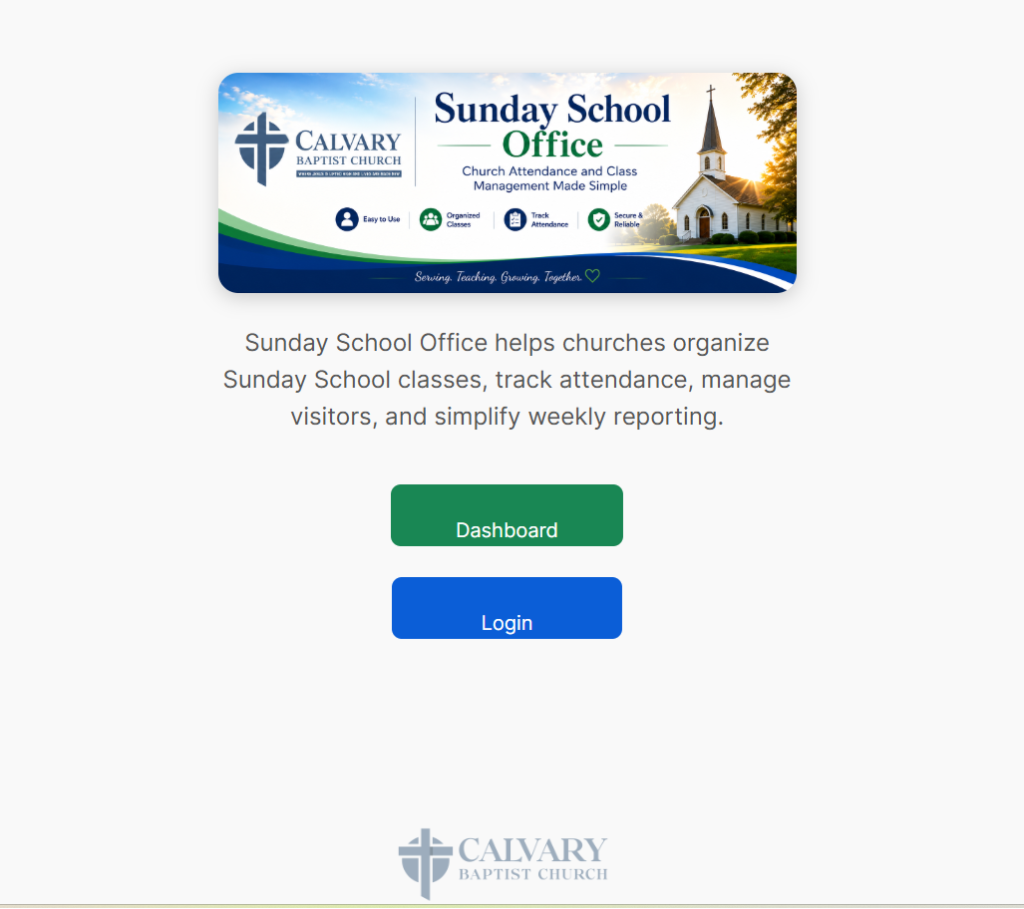
The Welcome Screen serves as the entry point to Sunday School Office and provides access to both the teacher dashboard and the administrative area of the system.
Dashboard
The Dashboard button opens the Teacher Dashboard, where Sunday School teachers can record attendance, add visitors, review follow-up needs, and monitor weekly ministry activity. Most teachers will use this option for their weekly Sunday School responsibilities.
Login
The Login button opens the administrative area of Sunday School Office. Authorized users can access advanced functions such as class management, member management, attendance reports, visitor administration, and other system management features.
Dashboard Overview
The Dashboard provides a quick overview of ministry activity and serves as the main workspace for Sunday School Office.
From the Dashboard, teachers can:
• Take weekly attendance
• Add new visitors
• Review the Weekly Snapshot
• Monitor Visitor Follow-Up activity
• Review Member Follow-Up needs
• View Recent Visitor activity
The Weekly Snapshot displays attendance totals, visitor totals, and the number of classes reporting attendance for the week.
At this time, the Weekly Reports, Manage Classes, and Member Directory sections are displayed for future development and are not currently operational.
The following pages contain screenshots of the Dashboard and its various sections. These screenshots are provided to help familiarize teachers with the layout and features of Sunday School Office before learning how to perform specific tasks.
Attendance
Attendance
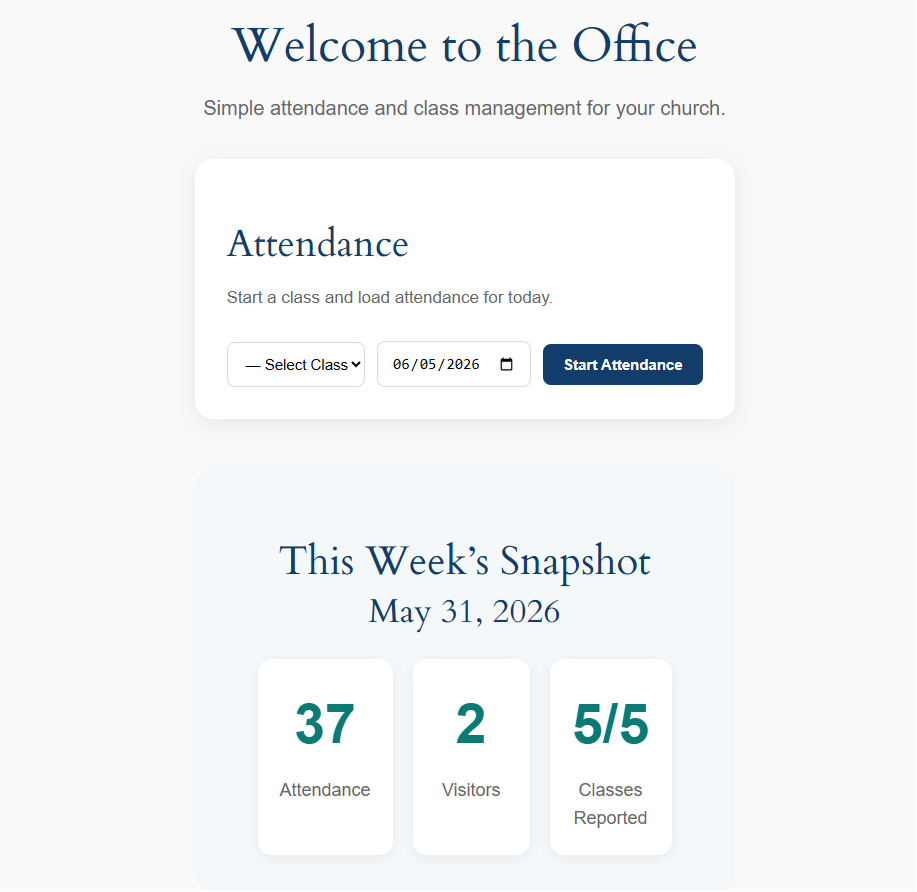
The Attendance section is where teachers record weekly class attendance. Select your class, choose the attendance date, and click Start Attendance to open the attendance roster. From there, members can be marked present or absent, visitors can be added, and attendance records can be saved for the selected week.
This Week’s Snapshot
The Weekly Snapshot provides a quick overview of ministry activity for the most recent Sunday. It displays total attendance, total visitors, and the number of classes that have reported attendance. This information allows teachers and ministry leaders to quickly monitor participation and reporting across the Sunday School program.
Member Follow-Up
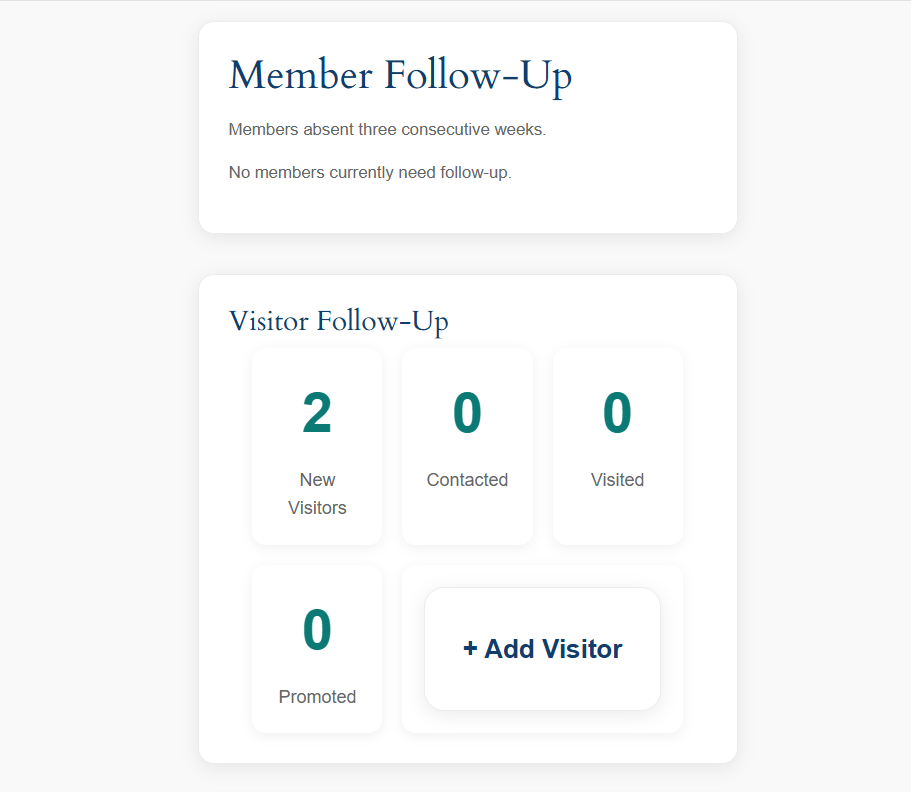
Member Follow-Up
The Member Follow-Up section helps teachers identify members who may need encouragement, care, or personal contact. Members who have been absent for three consecutive weeks will automatically appear in this section along with their contact information. This allows teachers to quickly identify and minister to members who may be drifting away or facing personal challenges.
Visitor Follow-Up
The Visitor Follow-Up section provides a summary of current visitor activity and follow-up progress. Visitors are tracked through each stage of the follow-up process, including New Visitor, Contacted, Visited, and Promoted. The + Add Visitor button allows teachers to quickly add new guests or record returning visitors. This section helps ensure that every visitor receives appropriate follow-up and encouragement after their visit.
Effective visitor follow-up is one of the most important ministry responsibilities of a Sunday School class and helps transform first-time guests into active participants in the life of the church.
Recent Visitors
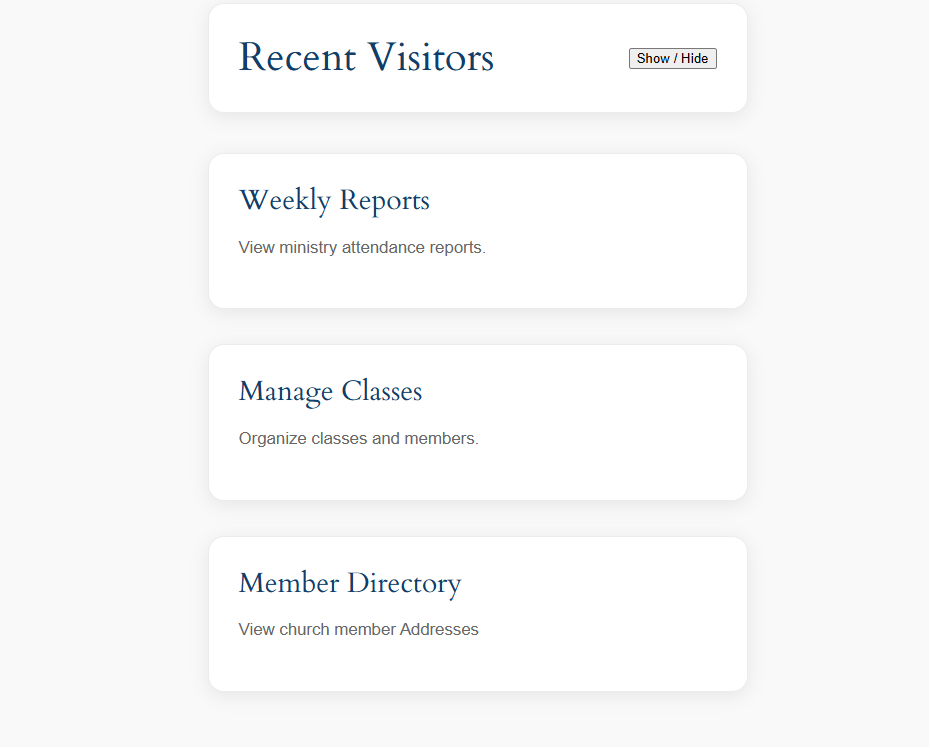
Recent Visitors and Future Features
The Recent Visitors section displays the most recent visitor activity recorded in Sunday School Office. Teachers can review recent guests, monitor follow-up progress, update visitor information, and track ministry efforts to ensure that every visitor receives appropriate attention and care.
The Show / Hide button allows this section to be expanded or collapsed, helping keep the Dashboard organized while still providing quick access to visitor information when needed.
The Weekly Reports, Manage Classes, and Member Directory sections shown below Recent Visitors are currently placeholders for future development. These features are not operational at this time and may be included in a future release of Sunday School Office.
See the expanded Recent Visitors section below.
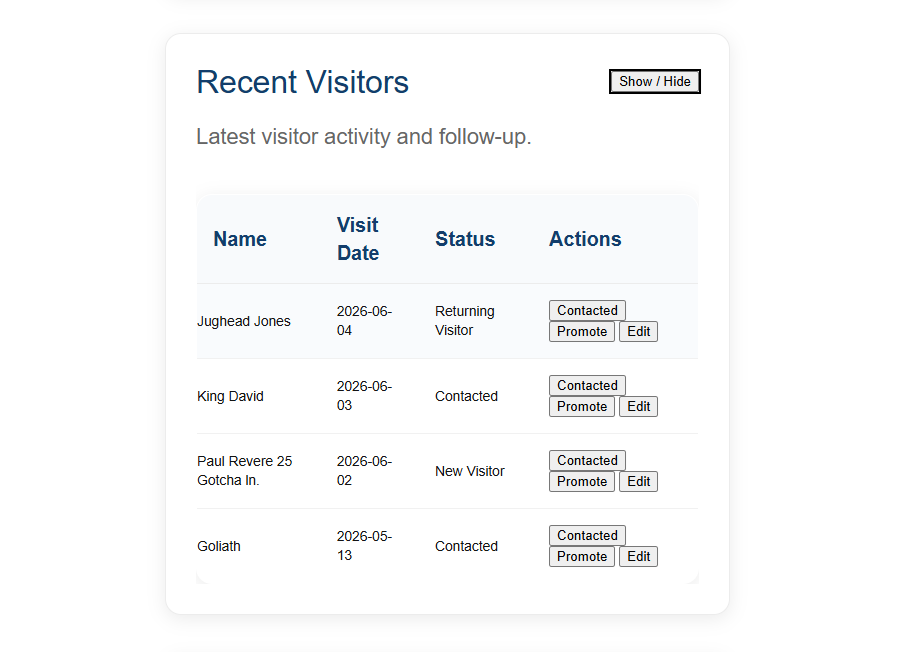
Expanded Recent Visitors Section
The Expanded Recent Visitors section provides a detailed view of the most recent guests recorded in Sunday School Office. This area serves as the primary workspace for managing visitor follow-up and tracking progress toward visitor retention and membership.
Each visitor record displays the following information:
- Name – The visitor’s name as entered into the system.
- Visit Date – The most recent date the visitor attended.
- Status – The visitor’s current follow-up stage.
- Actions – Available tools for updating the visitor record.
Visitor Statuses
The Status column allows teachers to quickly identify where each visitor is in the follow-up process.
- New Visitor – First-time guest awaiting follow-up.
- Contacted – A phone call, text message, email, or personal conversation has been completed.
- Returning Visitor – The guest has attended more than once.
- Visited – A personal visit has been completed.
- Promoted – The visitor has become a member.
Action Buttons
Several action buttons are available to help teachers maintain accurate visitor records.
Contacted
The Contacted button updates the visitor’s status to indicate that follow-up contact has been made. This helps teachers and ministry leaders quickly identify which guests have already been contacted and which still require follow-up.
Promote
The Promote button should be used when a visitor becomes an active church member. Once promoted, the visitor is transferred into the member database and is no longer tracked as a visitor.
Edit
The Edit button opens the visitor record for modification. Teachers may update contact information, notes, or other visitor details as additional information becomes available.
Ministry Importance
The Recent Visitors section helps ensure that no guest is overlooked. Consistent and timely follow-up is one of the most effective ways to help visitors feel welcomed, connected, and encouraged to become active participants in the life of the church.
Taking Attendance
Step 1: Select your class.
Step 2: Select the attendance date.
Step 3: Click Start Attendance.
Step 4: Mark members present.
Step 5: Use Mark All Present if appropriate.
Step 6: Click Save Attendance.
Selecting a Class for Attendance
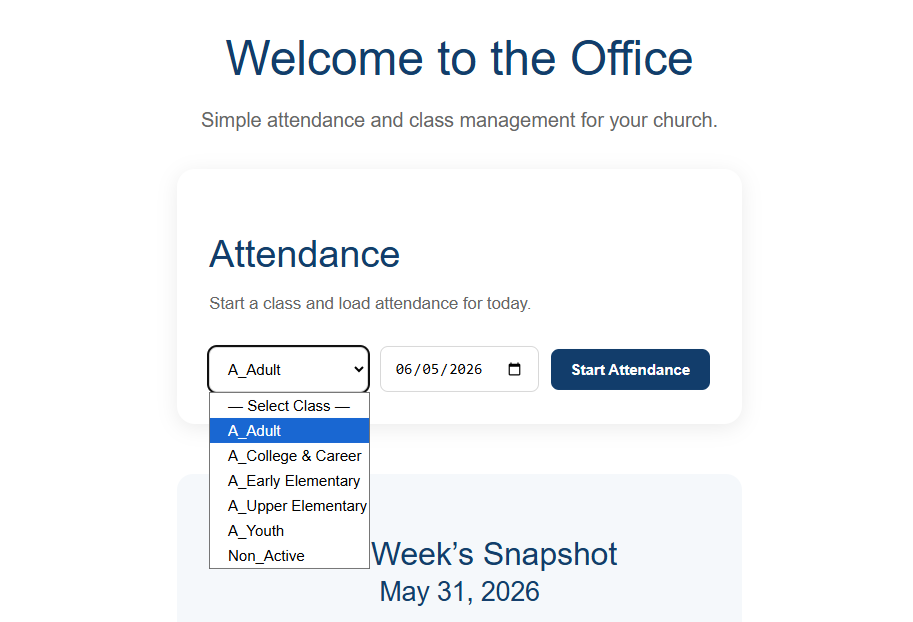
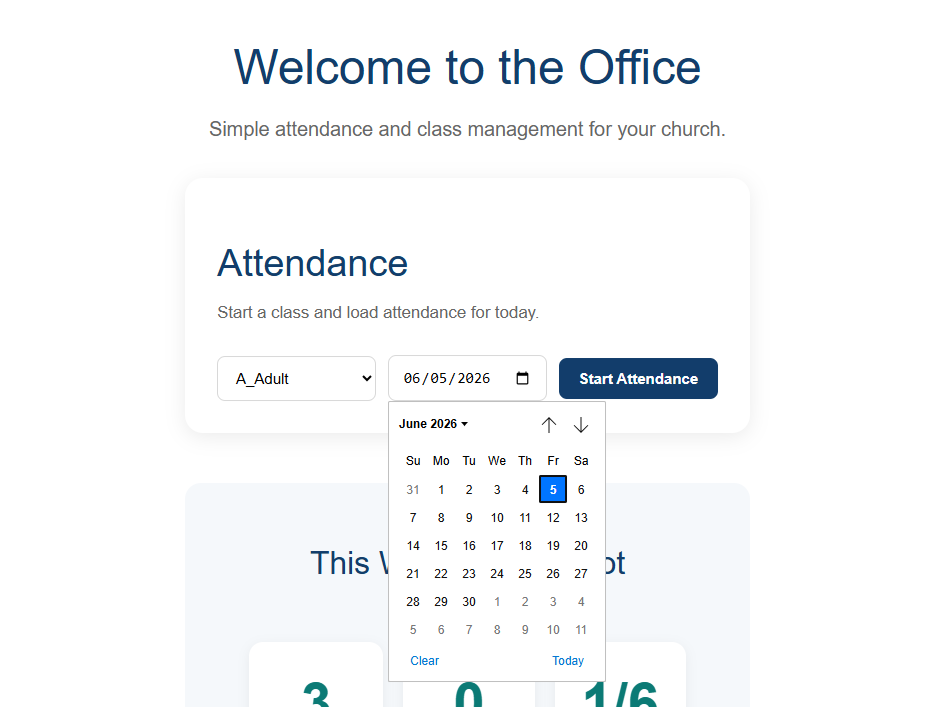
Before attendance can be recorded, a class must be selected from the Class dropdown menu.
The dropdown displays all active Sunday School classes currently configured in Sunday School Office. Select the class for which attendance is being recorded. Once a class is selected, choose the appropriate attendance date and click Start Attendance to load the class roster.
In the example shown above, the A_Adult class has been selected. Additional classes are available from the dropdown list, allowing teachers to quickly switch between classes if needed.
Important: Attendance cannot be loaded until a class has been selected. If no class is chosen, Sunday School Office will prompt the user to select a class before continuing.
Selecting the Attendance Date
After selecting a class, choose the date for which attendance will be recorded.
The date field automatically defaults to the current date, making it easy to record attendance on the day of class. If attendance is being entered later, teachers may select a previous date from the calendar.
To change the date:
- Click the date field.
- Select the appropriate date from the calendar.
- Verify that both the class and date are correct.
- Click Start Attendance to load the attendance roster.
Important: Always verify the attendance date before saving attendance records. Attendance entered under the wrong date may affect attendance reports and historical records.
Attendance Tools
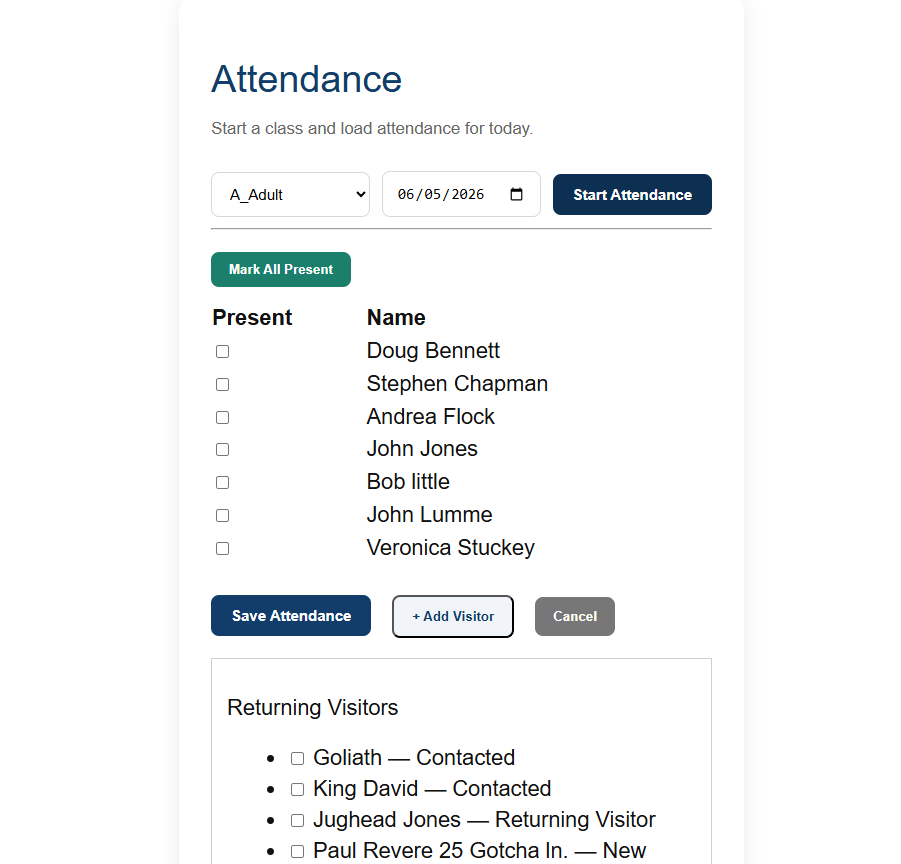
Mark All Present
The Mark All Present button automatically marks every member in the class as present. This feature can save time when most or all members are in attendance. After using this feature, simply uncheck any members who are absent before saving.
Add Visitor
The + Add Visitor button opens the Visitor Entry window, allowing teachers to record first-time guests or returning visitors without leaving the attendance screen.
Cancel
The Cancel button closes the attendance session and returns the user to the main Dashboard without saving any changes.
Returning Visitors
The Returning Visitors section appears below the attendance roster and displays visitors who have attended previously and are still active in the follow-up process.
Teachers may select visitors from this list when they attend class again. Doing so updates the visitor’s most recent attendance date and helps maintain an accurate follow-up history.
The visitor’s current follow-up status is displayed beside their name, allowing teachers to quickly determine whether the visitor is a New Visitor, Contacted Visitor, Visited Visitor, or Returning Visitor.
Important: Always click Save Attendance after marking attendance and selecting returning visitors. Attendance and visitor updates are not recorded until the attendance session is saved.
Recording Weekly Attendance
Once a class and attendance date have been selected, the class roster will be displayed. Each member assigned to the selected class will appear in the attendance list.
To record attendance:
- Check the box beside each member who is present.
- Leave the box unchecked for members who are absent.
- Review the attendance list for accuracy.
- Click Save Attendance to record the attendance for that date.
Working With Visitors
To add a new visitor, click + Add Visitor while taking attendance. Enter visitor information and save.
To record a returning visitor, search for the visitor first and select the existing record. This prevents duplicate records and preserves follow-up history.
Adding a New Visitor
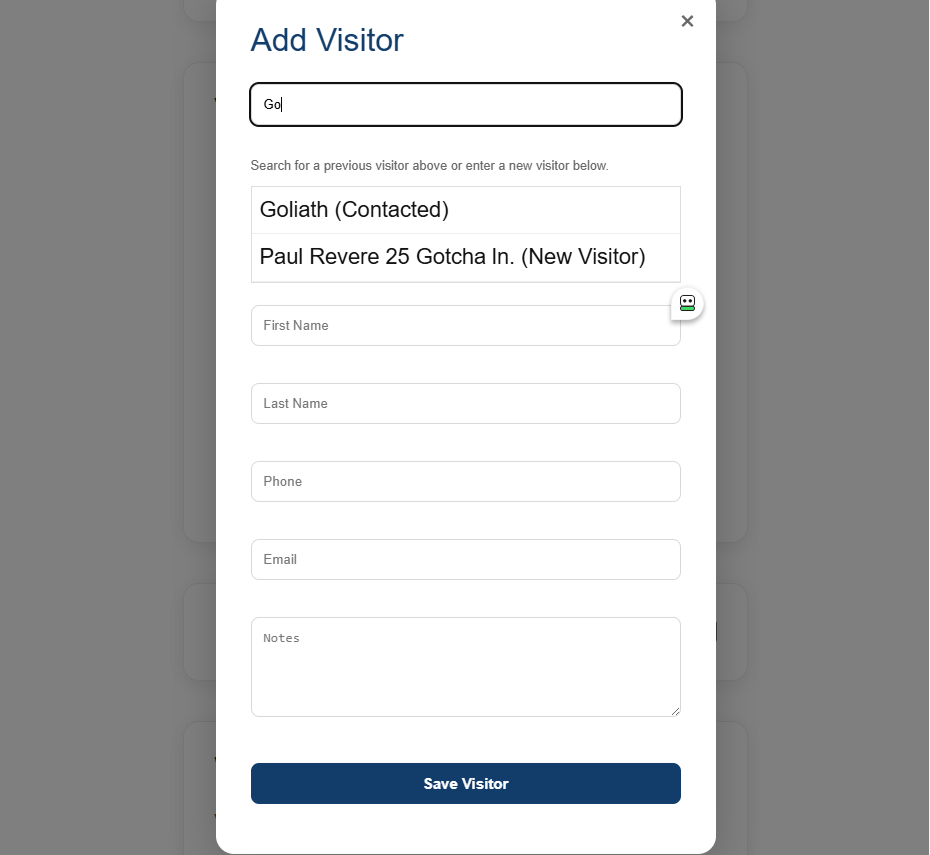
The Add Visitor window is used to record first-time guests and locate inactive visitors who are no longer displayed in the Returning Visitors section of the attendance screen.
Most active returning visitors will already appear in the Returning Visitors list during attendance and can be selected there without opening this window. The Add Visitor window should only be used when adding a new guest or when searching for a visitor who is no longer active in the system.
Begin by typing the visitor’s name in the search box at the top of the window. Sunday School Office will automatically search existing visitor records and display any matching names.
If the visitor appears in the search results:
- Click the visitor’s name.
- Review the information that is automatically loaded into the form.
- Update any information as needed.
- Click Save Visitor.
If an inactive visitor is selected, Sunday School Office will automatically reactivate the visitor and return them to the active follow-up process.
If no matching visitor is found:
- Enter the visitor’s First Name and Last Name.
- Add a Phone Number and Email Address if available.
- Enter any relevant Notes, such as family information, special interests, prayer requests, or follow-up details.
- Click Save Visitor.
The Notes field is intended to provide helpful information for future follow-up and ministry opportunities. Notes should be accurate, respectful, and limited to information that assists the class in serving the visitor.
Important: Always search for an existing visitor before creating a new record. This helps prevent duplicating visitor records and preserves visitor attendance history and follow-up information.
After a visitor is saved, they will be available for future attendance sessions and follow-up activities within Sunday School Office.
Visitor Status Definitions
New Visitor – Guest has attended but not been contacted.
Contacted – Someone has reached out to the visitor.
Visited – Personal visit completed.
Returning Visitor – Visitor attended again.
Inactive Visitor – No attendance activity for approximately 56 days.
Promoted – Visitor has become a member.
Manage Recent Visitors
The Recent Visitors section allows teachers to review recent guest activity, update visitor information, mark visitors as contacted and promote visitors to membership.

Recent Visitors
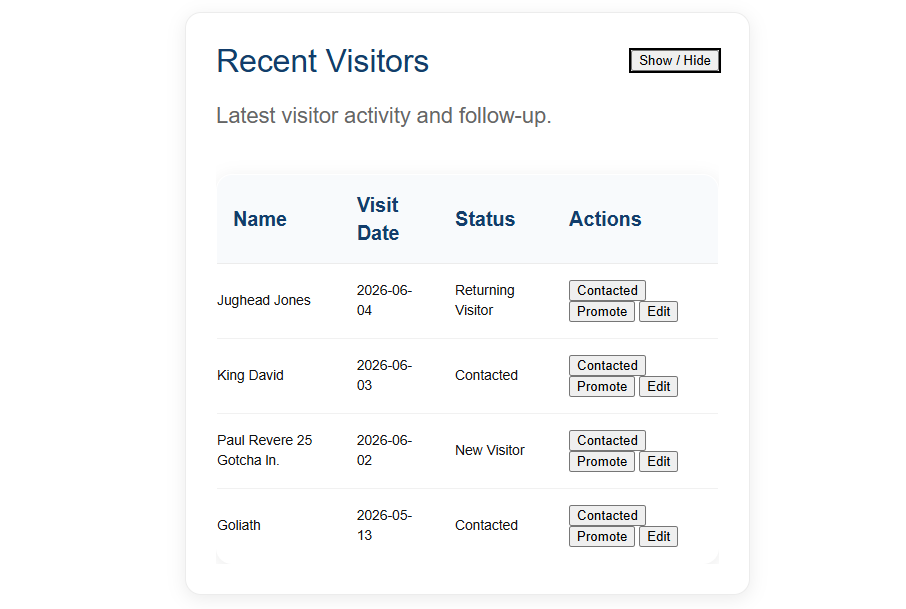
The Recent Visitors section provides quick access to the most recent visitor activity recorded in Sunday School Office. This section helps teachers monitor follow-up progress, update visitor records, and identify visitors who may be ready for additional ministry contact or membership.
By default, this section is collapsed to keep the Dashboard organized and easy to navigate.
Show / Hide Button
The Show / Hide button expands or collapses the Recent Visitors section.
When collapsed, only the section heading is displayed. This allows teachers to keep the Dashboard uncluttered while still having quick access to visitor information when needed.
When expanded, a detailed list of recent visitors is displayed, including visitor status and available follow-up actions.
Visitor Information
Each visitor record contains the following information:
Name
Displays the visitor’s name as recorded in Sunday School Office.
Visit Date
Displays the most recent date the visitor attended a Sunday School class.
Status
Displays the visitor’s current follow-up stage.
Common statuses include:
- New Visitor – First-time guest awaiting follow-up.
- Contacted – Follow-up contact has been made.
- Visited – A personal visit has been completed.
- Returning Visitor – The guest has attended more than once.
Action Buttons
The Actions column provides tools for updating visitor records and follow-up progress.
Contacted
The Contacted button updates the visitor’s status to indicate that follow-up contact has been made through a phone call, text message, email, personal conversation, or other ministry contact.
This helps teachers quickly identify which visitors have already received follow-up attention.
Promote
The Promote button should be used when a visitor becomes an active member of the church.
When promoted:
- A member record is automatically created.
- The visitor is removed from visitor tracking.
- Future attendance is recorded as a member rather than a visitor.
Edit
The Edit button opens the visitor record for modification.
Teachers may update:
- Name
- Phone Number
- Email Address
- Notes
This allows visitor information to remain current and accurate as additional information becomes available.
Ministry Tip
The Recent Visitors section should be reviewed regularly. Consistent follow-up with visitors is one of the most effective ways to help guests feel welcomed, connected, and encouraged to become active participants in the life of the church.
Member Follow-Up
Members absent three consecutive weeks appear in the Member Follow-Up section. Teachers can use the contact information provided to encourage and minister to those members.
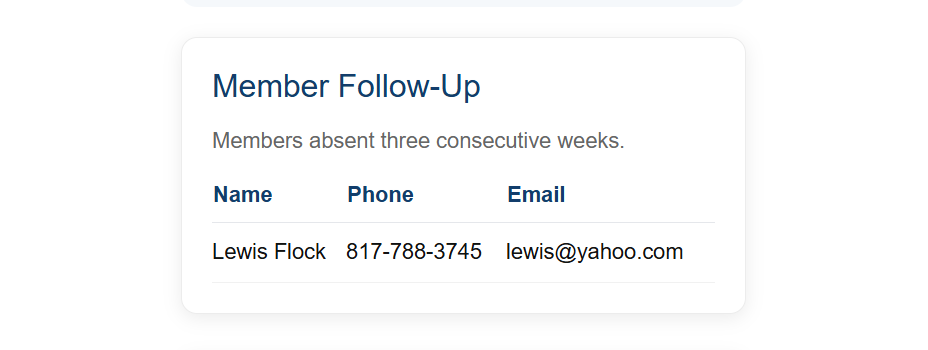
The Member Follow-Up section helps teachers identify members who may need encouragement, prayer, or personal contact. Members who have been absent for three consecutive weeks are automatically displayed in this section.
For each member, Sunday School Office provides:
- Name
- Phone Number
- Email Address
This information allows teachers to quickly contact members and determine if there are needs, concerns, illnesses, or other circumstances that may be affecting attendance.
The Member Follow-Up list is updated automatically based on attendance records entered into Sunday School Office.
Ministry Tip: A simple phone call, text message, card, or visit can often encourage an absent member and help maintain meaningful connections within the Sunday School class.
Class Reports
Understanding the Reports
Sunday School Office includes two separate reporting areas designed for different leadership roles.
Teacher’s Class Report
The Teacher’s Class Report is class-specific and displays information only for the teacher’s assigned class. This report helps teachers monitor attendance trends, identify members needing follow-up, and evaluate the overall health of their class.
Director’s Reports
Director’s Reports provide ministry-wide reporting across all Sunday School classes. Directors can view attendance trends, compare classes, analyze ministry growth, and generate reports for church leadership.
In summary: Teachers see reports for their own class, while Directors have access to reports for the entire Sunday School ministry.
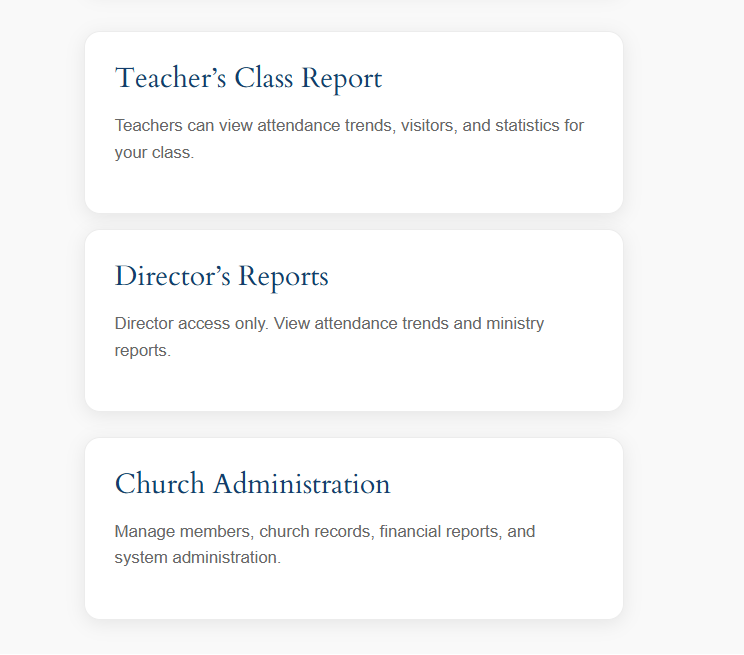
Teacher’s Class Reports
The Teacher’s Class Report provides teachers with attendance trends and follow-up information for their individual class. This report helps teachers monitor attendance patterns, identify members who may need contact, and track class health over time.
Accessing the Report
- Log into Sunday School Office.
- Open the Teacher Dashboard.
- Click Teacher’s Class Report.
Features
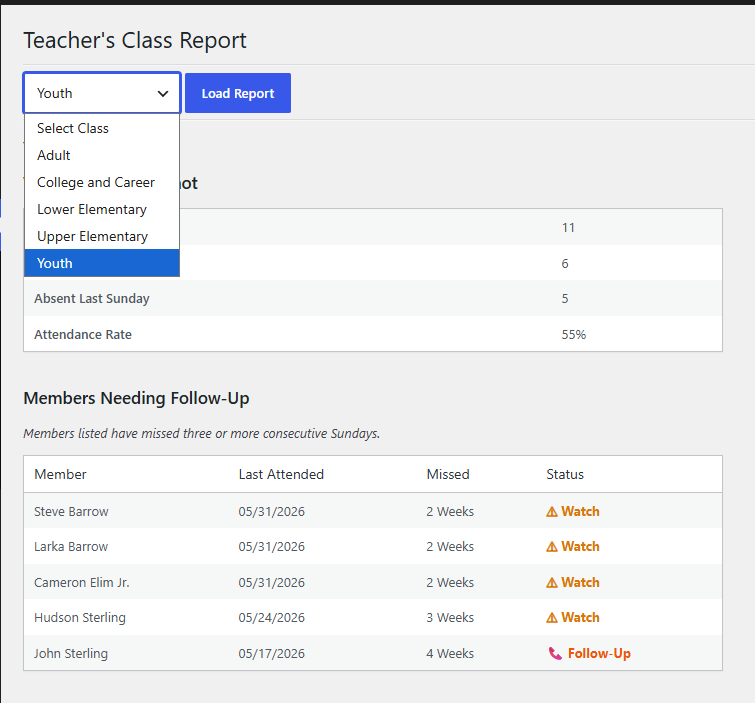
Weekly Class Snapshot
Provides a quick overview of:
- Class Roll
- Present Last Sunday
- Absent Last Sunday
- Attendance Rate
Members Needing Follow-Up
Displays members who have missed multiple consecutive Sundays.
Information includes:
- Member Name
- Last Attendance Date
- Number of Weeks Missed
- Follow-Up Status
Status indicators help identify members who may need a phone call, visit, or encouragement.
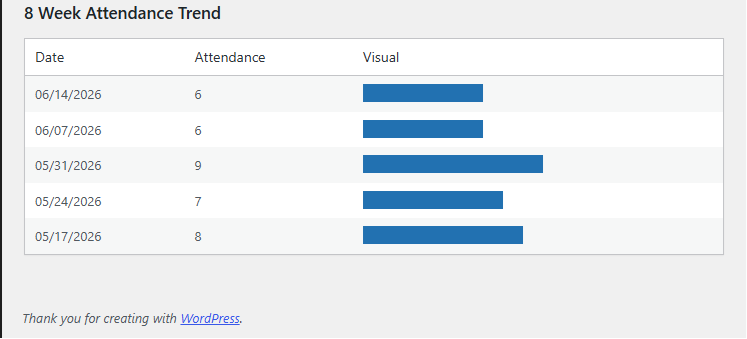
Attendance Trend
Shows attendance history for recent weeks.
Information includes:
- Attendance Date
- Attendance Count
- Visual Attendance Bar
This allows teachers to quickly identify attendance trends and seasonal fluctuations.
Director’s Reports
Director’s Reports provide Sunday School Directors with attendance reporting and ministry-wide statistics across all classes.
Note: Access is restricted to users assigned the Director role, Teachers are not able to accesses these features.
Accessing the Report
- Log into Sunday School Office.
- Open the Teacher Dashboard.
- Click Director’s Reports.
Features
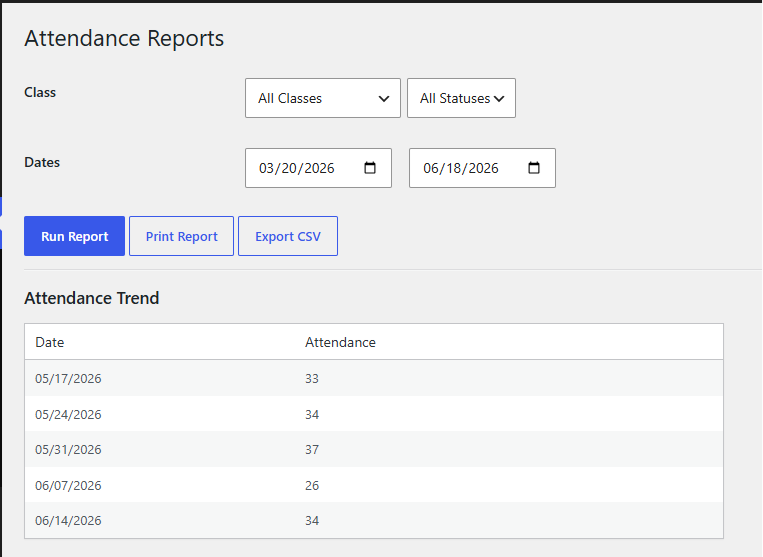
Attendance Filters
Reports can be filtered by:
- Class
- Member Status
- Beginning Date
- Ending Date
Attendance Trend Table
Displays attendance totals by date for the selected period.
Information includes:
- Date
- Attendance Count
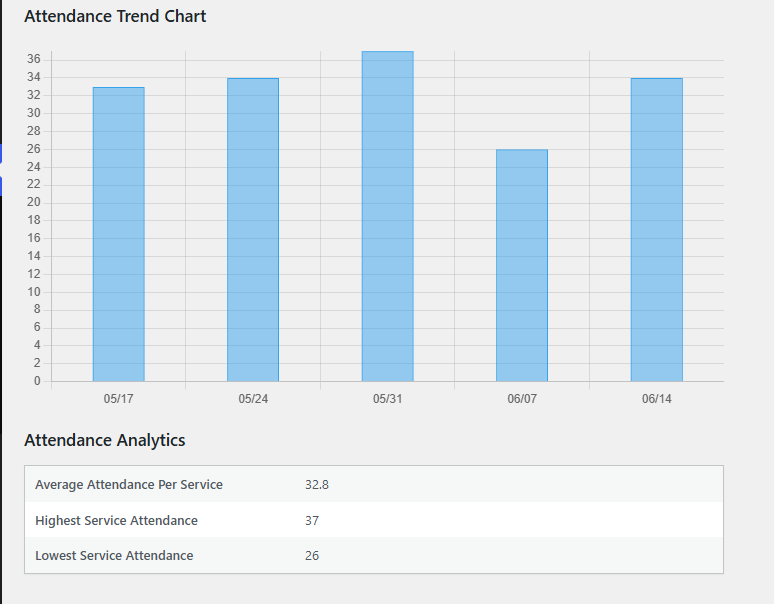
Attendance Trend Chart
A visual chart showing attendance growth and decline over time.
This allows Directors to:
- Monitor overall attendance trends.
- Identify growth opportunities.
- Track ministry effectiveness.
- Evaluate attendance patterns across classes.
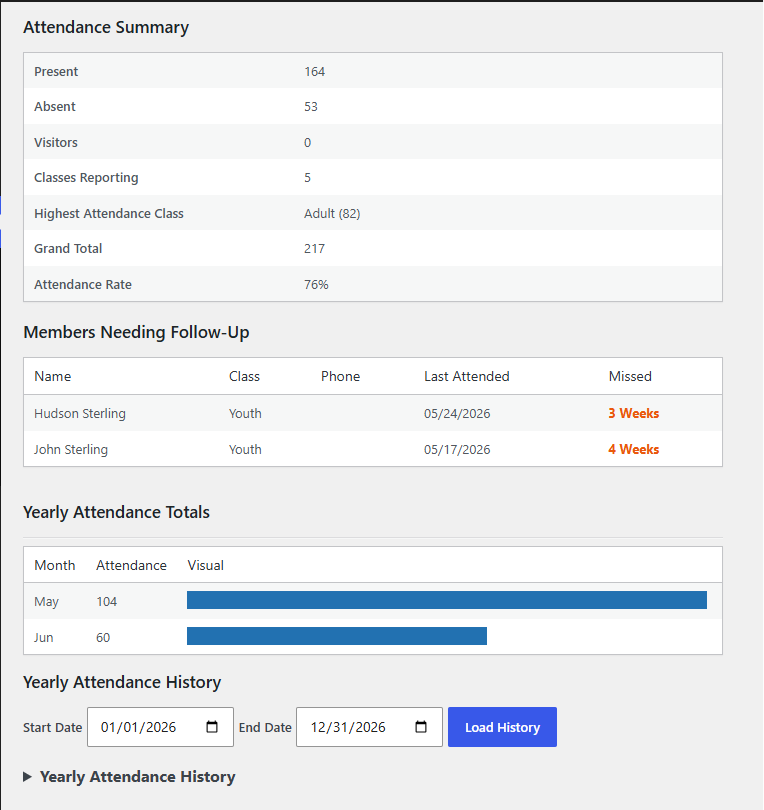
Report Actions
Run Report
Generates attendance results using the selected filters.
Print Report
Creates a printer-friendly version of the report.
Export CSV
Exports attendance data for use in Microsoft Excel or other spreadsheet programs.
Church Administration
The Church Administration section is reserved for future expansion of Sunday School Office. While this area is not currently active, it has been included in the system design to support additional church management features as the platform grows.
Current Status
This section is currently under development and is not required for normal Sunday School Office operation.
Sunday School Office is presently focused on Sunday School attendance tracking, visitor management, member follow-up, teacher reporting, and director reporting. Future updates may expand the Church Administration area to provide broader church management tools.
Note: The Church Administration button is included as part of the long-term vision for Sunday School Office and may be activated in a future release.